
Beyond the “Update” Button: What Real WordPress Maintenance Actually Requires
For many business owners, maintaining a WordPress site seems simple: log into the dashboard, click the notification badge, press “Update All,” and log out. It takes thirty seconds, costs nothing, and leaves a comforting row of green checkmarks in its wake.
Unfortunately, this single routine is responsible for more sudden site outages, broken checkout flows, and silent conversion drops than almost any other action.
Updating a plugin or core file is only the final step of a maintenance cycle—not the process itself. In a complex web ecosystem where custom themes, third-party APIs, database schemas, and server configurations intersect, automated dashboard updates are a gamble.
True WordPress maintenance is a proactive engineering discipline designed to protect revenue, guarantee performance, and secure your infrastructure against emerging threats. Here is a breakdown of why one-click updates fail and what professional site care actually looks like.
The Hidden Risks of One-Click Dashboard Updates
Modern WordPress applications rarely run in isolation. A typical commercial site relies on 20 to 50 active plugins, a custom or heavily builder-assisted theme (such as Bricks or Elementor), custom PHP functions, and external APIs (payment gateways, CRMs, tracking scripts).
When you click “Update” directly on your live production server, several critical risks immediately arise:
1. PHP Version Incompatibilities
Plugin developers write code for different target PHP runtimes. Updating a plugin without verifying your server’s active PHP version can instantly trigger fatal errors (HTTP 500 Internal Server Error), rendering your site inaccessible to visitors and search engine crawlers alike.
2. Silent Functional Breakdown
Not all updates break a site outright. Often, a major plugin update introduces a script conflict that breaks a single key feature—such as your AJAX contact form, WooCommerce checkout modal, or mobile navigation menu. Because the homepage loads fine, these silent failures frequently go unnoticed for days or weeks, costing you valuable leads and sales.
3. Database Schema Bloat & Corruption
Complex plugins (e.g., e-commerce, membership, LMS) alter your MySQL database schema during major updates. Running these migrations directly on a live site under active user traffic can lock database tables, cause request timeouts, or leave orphaned data tables behind if the update script fails mid-execution.
The 5 Essential Pillars of Professional WordPress Care
To keep a business website fast, secure, and reliable, maintenance must happen at both the application level and the server level. At i-wp-dev.com, we divide comprehensive WordPress care into five foundational pillars.
- Safe Staging Deployment
- Offsite Redundant Backups
- Server & App Security
- Database Optimization
- Proactive Uptime & Speed
Pillar 1: Isolated Staging & Safe Deployment Workflows
Production servers are for your customers, not for testing code. Every core, plugin, and theme update must follow a structured staging protocol before touching the live environment.
- Staging Environment Cloning: A byte-for-byte replica of your production website and database is spun up in an isolated staging environment.
- Pre-Update Testing: Updates are applied on staging first. Custom scripts and automated visual regression tools test key user flows: page load rendering, form submissions, and checkout processes.
- Version Control Integration: Critical customization files are managed through Git repositories (GitHub/GitLab) so changes can be tracked, audited, and rolled back instantly if an anomaly occurs.
- Scheduled Production Sync: Once verified, updates are deployed to the live server during off-peak traffic hours to minimize any impact on site visitors.
Pillar 2: Offsite, Redundant Backups & Disaster Recovery
A backup is only useful if you can restore it quickly when disaster strikes. Storing backups on your primary web server or relying solely on hosting provider automated snapshots is a major single point of failure.
- Storage Isolation: Backups must be stored on geographically separated, secure cloud infrastructure (such as AWS S3, Wasabi, or encrypted offsite storage)—completely independent of your main hosting account.
- Database vs. Full Snapshot Balance: High-traffic sites require hourly or real-time database backups alongside daily full-file snapshots. This prevents data loss for orders, user registrations, or new content created between full backup intervals.
- Restoration Verification: A backup policy is incomplete without periodic test restorations. We routinely test restoring backups to staging environments to verify data integrity and guarantee low Recovery Time Objectives (RTO).
Pillar 3: Server Hardening & Application Security
Security plugin installation is only one layer of defense. Real protection requires configuring both the application software and the underlying VPS/server environment.
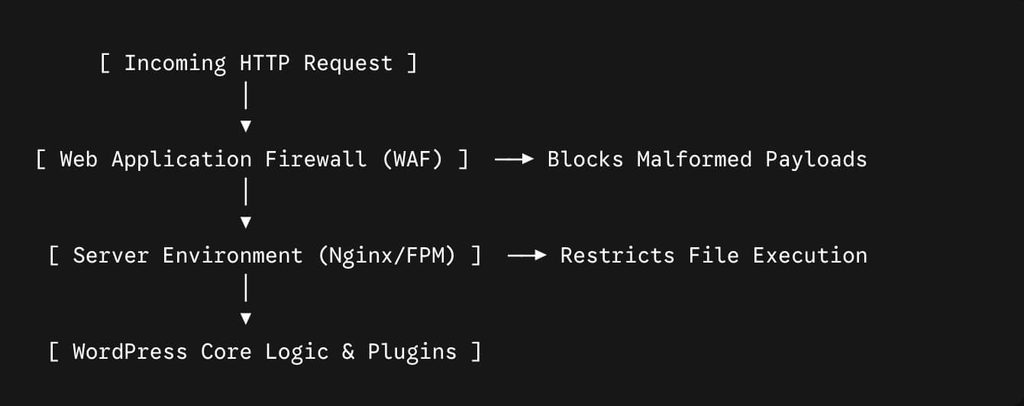
Server-Level Hardening: Disabling execution permissions in upload directories, configuring strict file permissions (644 for files, 755 for directories), and hardening Nginx/Apache headers to block unauthorized access to sensitive files like wp-config.php or .env.
WAF Optimization (Wordfence / Cloudflare): Fine-tuning Web Application Firewall (WAF) rules to operate in Extended Protection mode, filtering out malicious RCE, SQL injection, and XSS attack payloads before they execute.
Proactive PHP Runtime Management: Ensuring your server runs a supported, patched PHP version (e.g., PHP 8.2+ or 8.3+) and applying immediate security patches for newly disclosed PHP core vulnerabilities.
Pillar 4: Database Optimization & Housekeeping
Over time, WordPress databases accumulate overhead that slows down query response times and degrades server performance. Routine database maintenance involves:
- Cleaning Transients & Expired Sessions: Removing stale transient options and expired WooCommerce session tokens that bloat the
wp_optionstable. - Reclaiming Unused Space: Deleting old post revisions, spam comments, and orphaned metadata left behind by deleted plugins.
- Table Indexing & Optimization: Running
OPTIMIZE TABLEoperations to defragment database tables and maintain fast MySQL query execution.
Pillar 5: Proactive Uptime & Performance Monitoring
Waiting for a customer to email you that your site is down costs business reputation and revenue. Professional care relies on real-time automated monitoring.
- Endpoint & Uptime Checks: 60-second ping monitors check your site availability around the clock from multiple global locations.
- Core Web Vitals Tracking: Automated performance tracking monitors metrics like Largest Contentful Paint (LCP) and Cumulative Layout Shift (CLS) to catch performance drops before they harm your Google rankings.
- Log Analysis: Continuous monitoring of PHP error logs and access logs to catch silent warnings, deprecated function calls, or brute-force attack spikes.
DIY Maintenance vs. Professional WordPress Support
Attempting to handle technical maintenance in-house often leads to higher costs when emergency fixes become necessary.
| Feature | DIY / One-Click Updates | Professional Care Plan (i-wp-dev) |
| Update Testing Environment | Direct on Live Production Site | Isolated Staging Environment |
| Backup Storage | Local Server / Single Point of Failure | Encrypted Offsite Cloud Storage |
| Emergency Recovery Time | Hours to Days (Manual Troubleshooting) | Fast RTO with Instant Rollbacks |
| Security Scope | Basic Plugin Install | WAF + Server Hardening + Malware Scans |
| Performance Oversight | Reactive (When slow) | Proactive Core Web Vitals Monitoring |
| Technical Focus | Distracts from Core Business | Handled by Experienced Engineers |
Monthly WordPress Health Checklist for Business Owners
If you manage your website internally, ensure your technical team follows this baseline checklist each month:
- Create a full site backup and verify it is saved to an external storage server.
- Sync live site to staging before running any update scripts.
- Apply Core, Plugin, and Theme updates on the staging site first.
- Test key functionality: forms, navigation, user logins, and checkout steps.
- Check active PHP version support and update server runtime if necessary.
- Clean transient options, post revisions, and database overhead.
- Deploy verified changes to production during low-traffic periods.
- Verify SSL certificate, WAF rule updates, and error logs.
Related posts
Insights and Tips from My Journey
- Category:
- Maintenance
Critical PHP2Shell Vulnerabilities (CVE-2026-109618 & CVE-2026-109619): Analysis and VPS Fix Guide
Ready to Take Your Project
to the Next Level?
Let’s bring your vision to life with expert development and custom solutions.
Contact us now and get started on transforming your ideas into reality!